
Whether you are trying to renovate or re-design an old room, it's always best to have a list of ideas. This is where the Projects tool comes in handy! The Projects tool allows you to add products, compare the best features, and share your ideas with others before you commit to purchase.
If you are unsure which appliances or brands you would like, please book a cooking demonstration with us. These demonstrations are free and give you the opportunity to seek advice from professional chefs.
To get the most out of the Projects tool, follow the steps below.
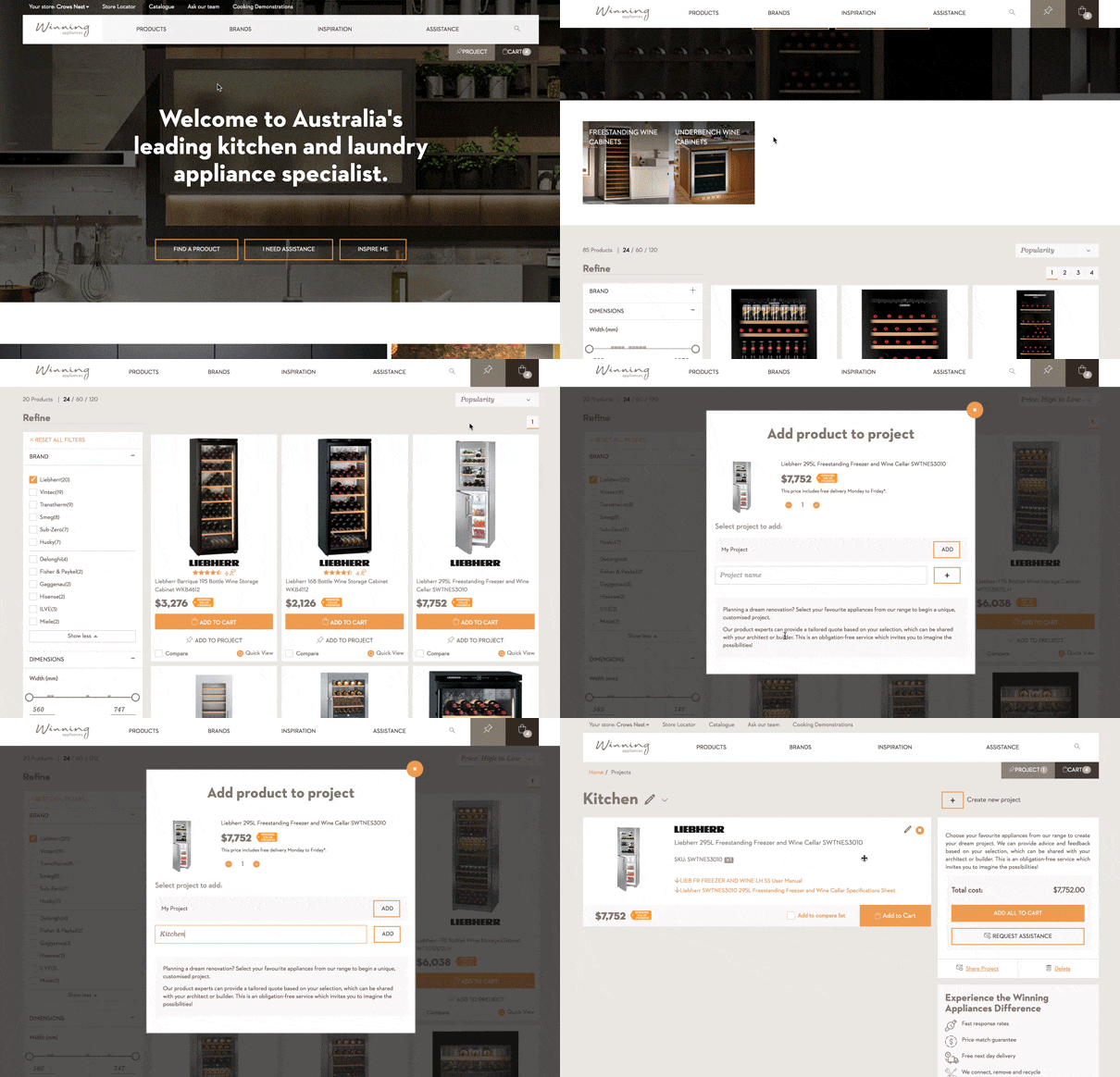
Adding products
1. Hover over "Products" for a full list of appliances. Select the category that best aligns with the appliance you are looking for.
2. You can refine using the filter on the right hand side.
3. Once you have refined your search, you can also sort the order of the products (e.g. "Price: High to Low").
4. To add a product to the project, click "Add To Project". Alternatively, click into the tile to view more details and then click "Add to Project".
5. Click "Add" on the selected project of your choice. If you do not have a project, you can create a new project name and "Add" to that.
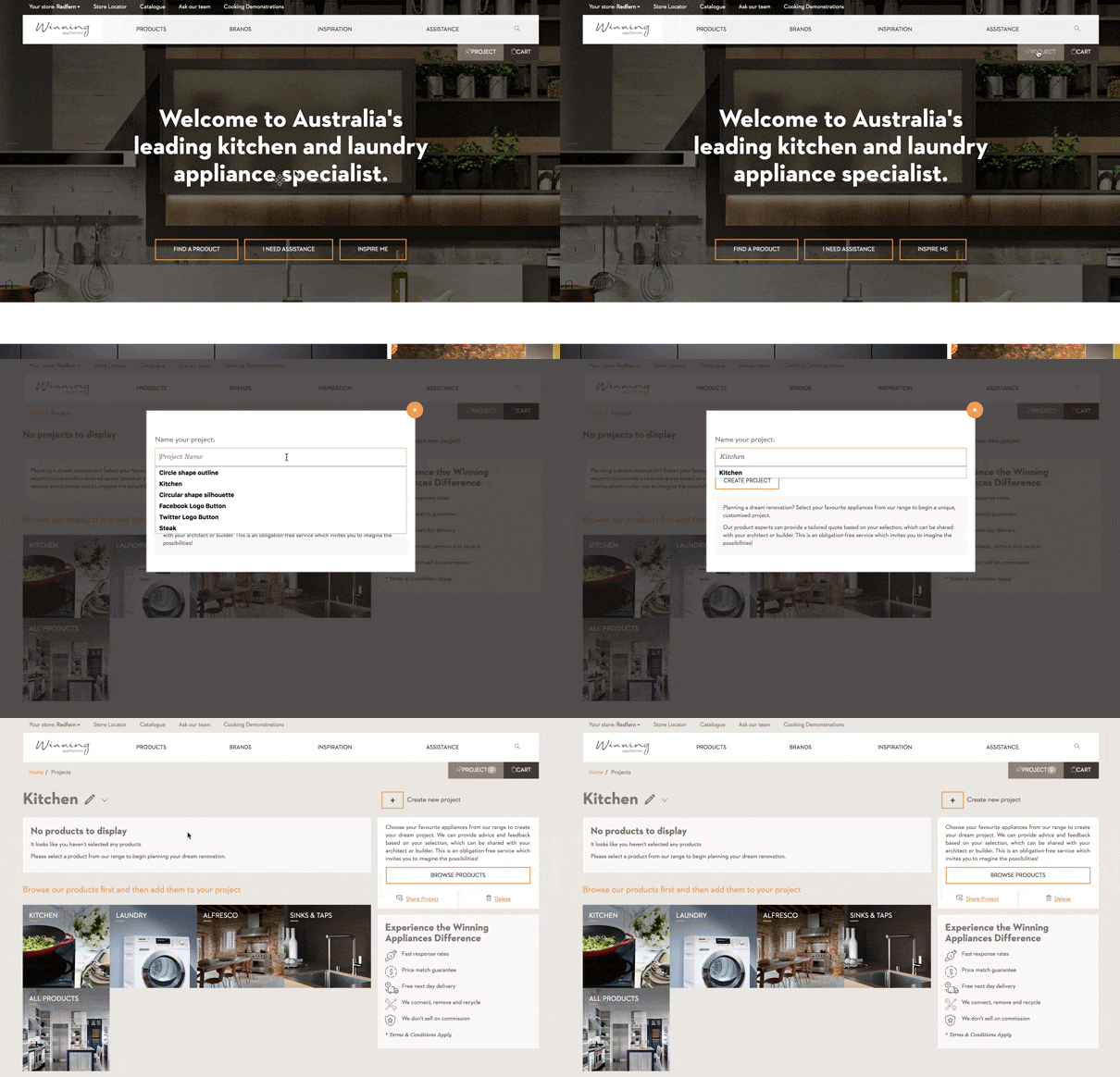
Creating the project
1. Go to the "Projects" tab.
2. Click "Create new project".
3. Name the new project (e.g. Kitchens)
Comparing the best features
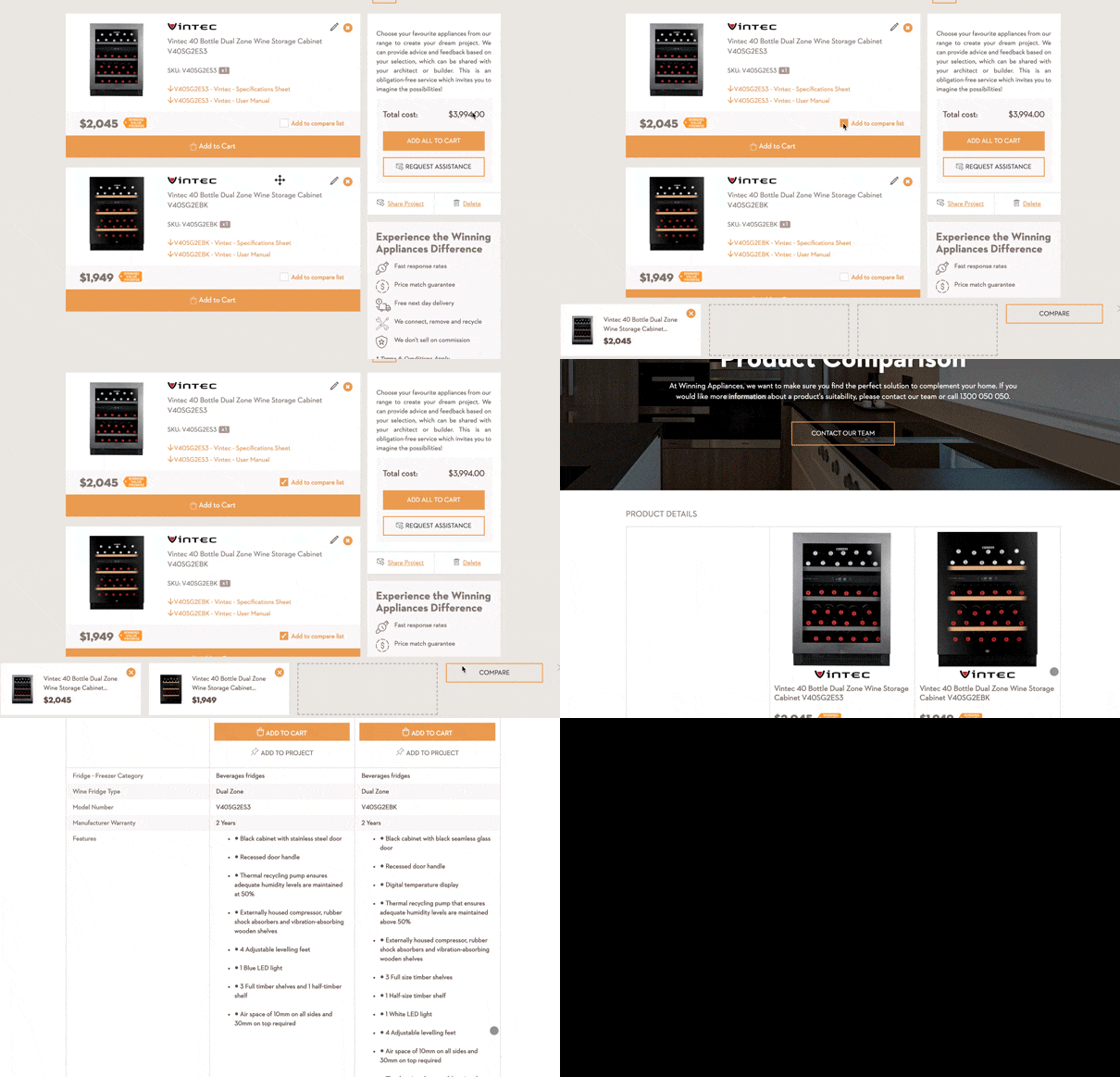
1. Tick the "Add to compare list" checkbox, found on the product tiles on the bottom right hand corner.
2. Tick a second item that is similar to the first item you would like to compare.
3. Click "Compare" to see the product comparison. All product details can be seen side-by-side.
Adding to cart
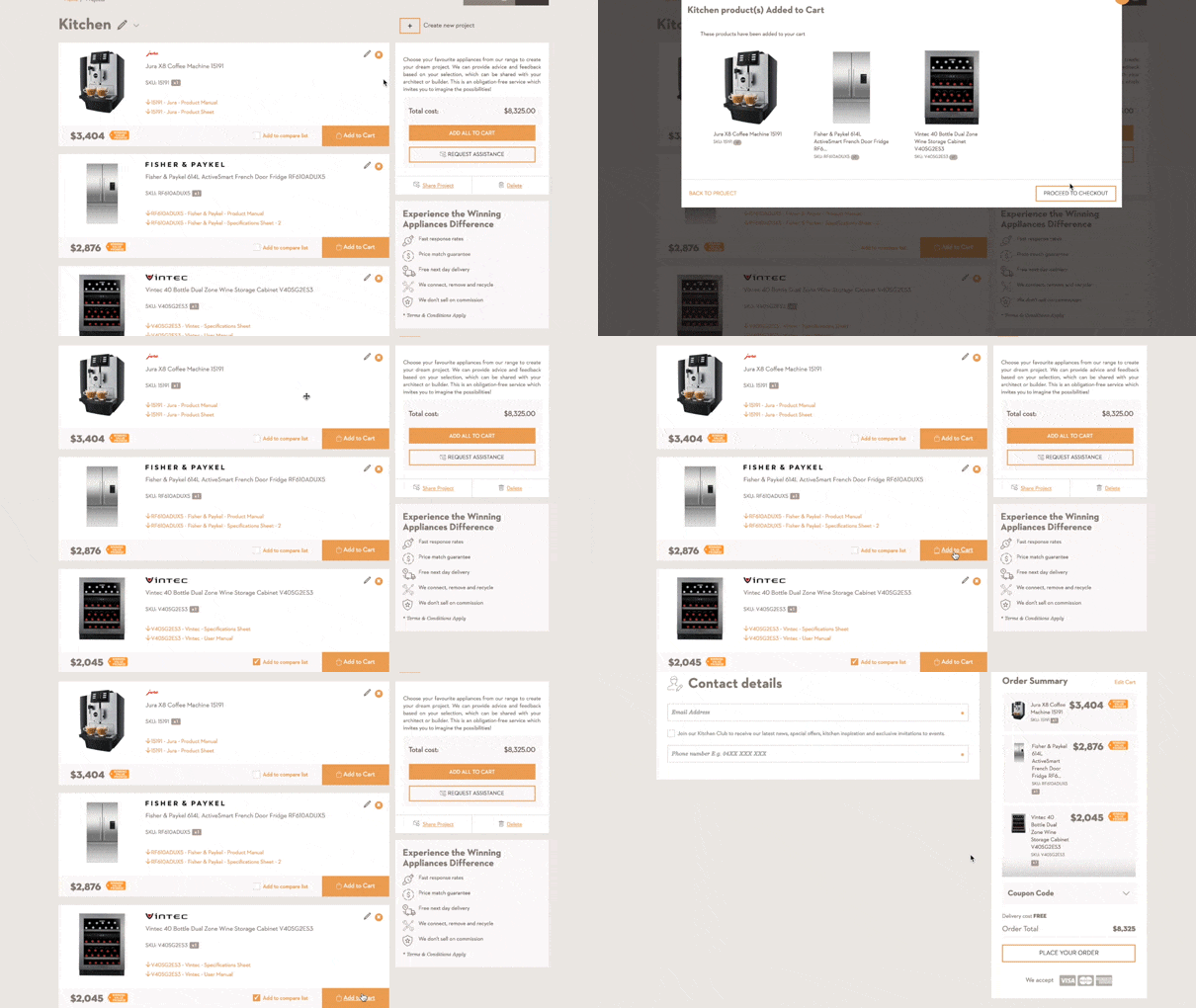
1. Once you are happy with the list, you can click "Add all to cart" on the right hand side. All the items wil be added and will be ready for checkout.
2. Click the "Proceed to Checkout" button and fill in the information to complete your order.
Individually adding to cart
1. Alternatively, press "Add to cart" to individually add items to the cart.
2. To add more than one item to the cart, press "Continue Shopping" or, if you want to finish
shopping, press "Proceed to checkout" to complete your order.
shopping, press "Proceed to checkout" to complete your order.
Sharing with others
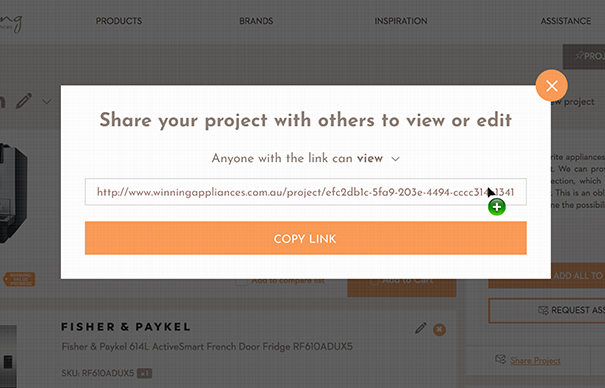
1. To share the project with others, click the "Share project" button on the right hand side.
2. Set the privacy level you would like for the link. You can choose to give someone full editing permission or a read-only link to the project.
Please note: users given read-only links can also share the project, but only by selecting "read-only" before sharing.
Requesting Assistance
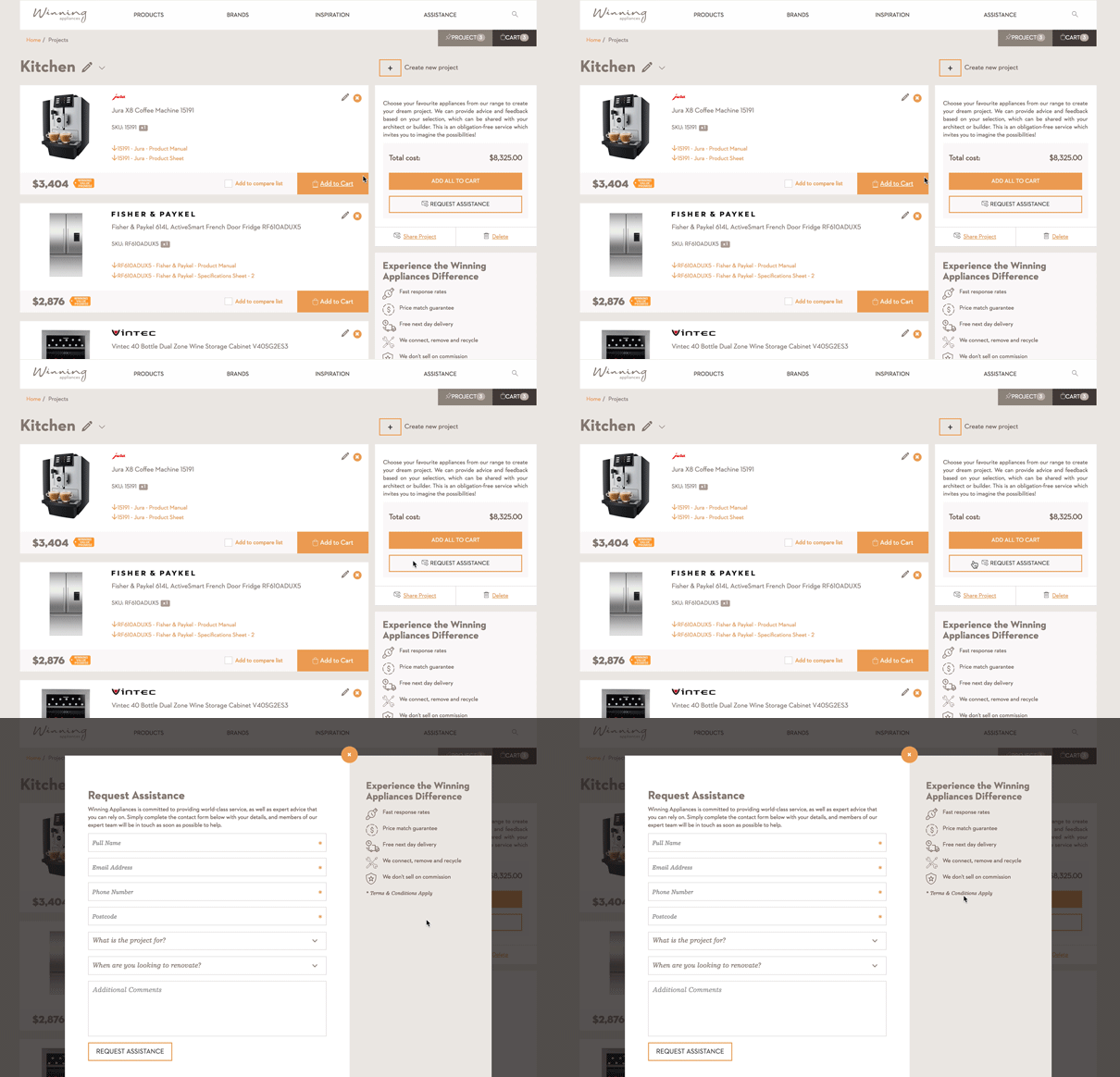
1. To receive help with product enquries or with general enquries, press "Request assistance".
2. Fill in the form to send you enquiry through and a Product Expert will be in touch as soon as possible.